Monday, September 26, 2011

Database test SQL for each vendor

When I setup a connection pool or database tool with a new database profile I like to test that it works, here are some vendor specific SQL you can use to test your db connection.

Cloudscape

#SQL SELECT 1

#DB2

#SQL SELECT COUNT(*) FROM SYSIBM.SYSTABLES

#Informix

#SQL SELECT COUNT(*) FROM SYSTABLES

#Microsoft SQL Server

#SQL SELECT COUNT(*) FROM SYSOBJECTS

#MySQL

#SQL SELECT 1

#Oracle

#SQL SELECT 1 FROM DUAL

#PointBase

#SQL SELECT COUNT(*) FROM SYSTABLES

#PostgreSQL

#SQL SELECT 1

#Progress

#SQL SELECT COUNT(*) FROM SYSTABLES

#Sybase

#SQL SELECT COUNT(*) FROM SYSOBJECTS

This is useful because you don't often know what tables exist in a database to test a query with, you can't assume select * from person would work if no person table was created. These queries are for the builtin system database resource in the specific vendor database types, they should exist even on a freshly installed or blank database server.

Monday, September 19, 2011

How do I insert CR LF in string column of a DB2 insert statement?

The insert syntax for adding new lines or line terminators in varchar columns in DB2 is not straightforward:

INSERT INTO EXAMPLE_TABLE ("ID","LEVEL_ID","VERSION","CONTENT","TYPE","FRAGMENT_ID") VALUES (158781,317339,20110701, 'your line of text' || x'0D' || x'0A' || 'your next line of text','HTML',0); 

The key to the query is to use || operator to concatenate the strings for the content column. The syntax for adding CR LF is :

'your line of text' || x'0D' || x'0A' 'your next line of text' 

DB2 will take the above and combine the strings into a single value for the database. The x'0D' x'0A' is to say hex value OD (carriage return) and hex value 0A (line feed). Windows expects both, for Linux/Unix OS only the 0A character is expected. For some versions of Mac OS you use only 0D, the newest ones use only 0A to end a line. For browsers, 0A is also the only needed character which is often ignored unless surrounded by pre or code tags however having both 0D and 0A will not cause display issues. The newest Windows OS may have support for just 0A as well in some cases.


Friday, September 16, 2011

How do I setup SSL for my apache web server?

Here is what I did to setup SSL for an apache web server on my local 64 bit Windows 7 box.

Download Apache2 with SSL module.

Install it here C:\Program Files (x86)\Apache Software Foundation\Apache2.2

Create an APACHE_HOME environment variable, from now on this is APACHE_HOME=C:\Program Files (x86)\Apache Software Foundation\Apache2.2

Add %APACHE_HOME%\bin to the path

Make a link to fix a bug with 64-bit Windows:

mklink /D %USERPROFILE%\apache "C:\Program Files (x86)\Apache Software Foundation\Apache2.2\"
Next I did the following:


cd %APACHE_HOME%\bin   openssl req -config "%APACHE_HOME%\conf\openssl.cnf" -new -out "%USERPROFILE%\cg.csr" -keyout "%USERPROFILE%\cg.pem" 

Loading 'screen' into random state - done  Generating a 1024 bit RSA private key .. ++++++ ...................++++++ writing new private key to  'C:\Documents and Settings\Administrator\cg.pem'  Enter PEM pass phrase:  Verifying - Enter PEM pass phrase:  -----  You are about to be asked to enter information that will be  incorporated into your certificate request. What you are about to  enter is what is called a Distinguished Name or a DN. There are  quite a few fields but you can leave some blank For some fields  there will be a default value, If you enter '.', the field will be  left blank.  -----  Country Name (2 letter code) [AU]:US  State or Province Name (full name) [Some-State]:Utah  Locality Name (eg, city) []:Orem  Organization Name (eg, company) [Internet Widgits Pty Ltd]:CG, LLC  Organizational Unit Name (eg, section) []:Engineering  Common Name (eg, YOUR name) []:   Email Address []:   Please enter the following 'extra' attributes to be sent with your  certificate request A challenge password []:  An optional company name []: 

for the "YOUR" name parameter openssl asks for (domain name) I used my machine's network name. (this is important because your HTTPS urls will check for the domain name in the browser request.

Next I did this to create a key file:

openssl rsa -in "%USERPROFILE%\cg.pem" -out "%USERPROFILE%\cg.key" 
Enter pass phrase for C:\Documents and Settings\Administrator\cg.pem: writing RSA key 

Next I ran this to create a certificate file:

openssl x509 -in "%USERPROFILE%\cg.csr" -out "%USERPROFILE%\cg.cert" -req -signkey "%USERPROFILE%\cg.key" -days 365 

Loading 'screen' into random state - done  Signature ok subject=/C=US/ST=Utah/L=Orem/O=CG, LLC/OU=Engineering/CN=cg.com Getting Private key 

The %USERPROFILE%\cg.key and %USERPROFILE%\cg.cert are used by apache for encrypting data over HTTPS. I copied them into %APACHE_HOME%\conf:

copy "%USERPROFILE%\cg.key" "%APACHE_HOME%\conf"  copy "%USERPROFILE%\cg.cert" "%APACHE_HOME%\conf" 

*The excessive use of quotations(") is to account for pesky directory names with spaces fouling up the command line.


Now it is time to configure apache to enable SSL, and configure apache with your generated SSL key and certificate:

uncommment these lines in %APACHE_HOME%\conf\httpd.conf

..  LoadModule ssl_module modules/mod_ssl.so  ...  Include conf/extra/httpd-ssl.conf  ... 

Replace localhost with your fully qualified domain name or IP address in httpd.conf and extra/http-ssl.conf

ServerName cg.com:80 

Edit the extra/httpd-ssl.conf file and fix the Windows 7 bug using the soft link created earlier:

change this  SSLSessionCache        "shmcb:C:/Program Files (x86)/Apache Software Foundation/Apache2.2/logs/ssl_scache(512000)"   to this  #SSLSessionCache        "shmcb:C:/Program Files (x86)/Apache Software Foundation/Apache2.2/logs/ssl_scache(512000)"  SSLSessionCache        "shmcb:%USERPROFILE%/apache/logs/ssl_scache(512000)" 

because the (x86) in the path confuses apache !

Check that this is set and uncommented:

SSLEngine on 

Also change these values:

SSLCertificateFile "C:/Program Files (x86)/Apache Software Foundation/Apache2.2/conf/cg.cert"  SSLCertificateKeyFile "C:/Program Files (x86)/Apache Software Foundation/Apache2.2/conf/cg.key" 

Restart apache and you should be able to use https urls.


If you don't have mklink, use junction from here http://technet.microsoft.com/en-us/sysinternals/bb896768

junction "%USERPROFILE%\apache" "C:\Program Files (x86)\Apache Software Foundation\Apache2.2\"

Or make sure to change the default folder you install Apache HTTPD to one which does not contain parenthesis, I use a set of folders

C:\Apps\

C:\Tools\ as folders to install most software and avoid Program Files and Program Files (x86) default locations for this reason.


For setting up Request Forwarding (Apache as a Proxy server)

Uncomment this in httpd.conf:

LoadModule rewrite_module modules/mod_rewrite.so 

Turn off ProxyRequests (apparently the Internet will asplode if you leave it on):

ProxyRequests off

For each path you want to proxy with Apache do this:

ProxyPass ProxyPassReverse /          SetOutputFilter  proxy-html          RequestHeader    unset  Accept-Encoding  

For example, if I want to pass all requests made to the Apache web server on /CG root path to a WebSphere J2EE application server running at http://cg.com:9080/CG, then I would create this:

ProxyPass /CG http://cg.com:9080/CG  ProxyPassReverse /CG http://cg.com:9080/CG ProxyPassReverse /          SetOutputFilter  proxy-html          RequestHeader    unset  Accept-Encoding 


You may also need to uncomment these lines in httpd.conf to get some of the proxy configuration to work:

LoadModule proxy_module modules/mod_proxy.so

LoadModule headers_module modules/mod_headers.so

LoadModule proxy_module modules/mod_proxy.so


Use this command to restart apache whenever changing the httpd.conf:
httpd.exe -k restart

Also to force HTTPS for a proxy path using Apache Rewrite:

First turn on mod_rewrite in httpd.conf:

LoadModule rewrite_module modules/mod_rewrite.so 

Change your location that you want to force HTTPS to this

ProxyPassReverse /          SetOutputFilter  proxy-html          RequestHeader    unset  Accept-Encoding       RewriteEngine On      RewriteCond %{HTTPS} off       RewriteRule (.*) https://%{HTTP_HOST}%{REQUEST_URI} 


Conditional Request Headers

I need to have a redirected request from a login service which sets a response cookie for successful login, add a special header value to the request:

httpd.conf needed this:

SetEnvIf Cookie "x_ldap_userdata=([^;]+)" USERDATA=$1  SetEnvIf Cookie "x_ldap_userdata=([^;]+)" HAVE_USERDATA=1  RequestHeader append LDAP-Username "%{USERDATA}e" env=HAVE_USERDATA

Now the string

LDAP-Username:username 

will be added to the header of requests when a cookie for a similar domain and path named x_ldap_userdata has been set in the browser by the login service.

The browser is dumb and just follows the redirect but cannot be told to put a header value in the request, you must add these changes to the httpd.conf to modify the request to include a special authentication header value.

Clear as mud?


I used these links to download apache 2 with ssl and also openssl:

http://downloads.sourceforge.net/gnuwin32/openssl-0.9.8h-1-setup.exe

http://apache.osuosl.org//httpd/binaries/win32/httpd-2.2.17-win32-x86-openssl-0.9.8o.msi


Wednesday, September 14, 2011

Friday, August 26, 2011

dynaTrace evaluation

dynaTrace can monitor/profile .NET and Java code but I only worked with evaluation of the Java side.

Download the dynatrace full install for linux x86 and windows x86 here product download page

Obtain a license key for evaluation (file will have a name like dynaTrace_license_201107201015.key)

You must have a dynatrace account to download them (dynatrace-3.5.2.2393.msi, dynatrace-3.5.2.2393-linux-x86.jar, dynaTrace_license_201107201015.key)

page dedicated to installation

Define a dedicated VM for dynatrace server/collector, I put the full install jar on a RedHat VM which acted as my server (make sure it has 4GB of RAM)
Run this to install the jar:
java -jar dynatrace-3.5.2.2393-linux-x86.jar

With this extracted to a folder (I put it in ~\dynatrace..) you can start the dyna collector and server with these commands:

cd dynatrace
nohup ./dtserver &
nohup ./dtanalysisserver &
nohup ./dtcollector &
I then ran the install for dynatrace-3.5.2.2393.msi on my desktop, I only installed the dynatrace client on my desktop.

Now you need to copy the dynatrace/agent/lib folder to the servers you want to profile/monitor (do not copy the folder to a path with a space in it like "program files", I put them in c:\tools\dynatrace\agent\lib)

Now you can change the websphere application server JVM arguments to add the dynatrace agent :
-agentpath:"C:\Tools\dynaTrace\dynaTrace 3.5.2\agent\lib\dtagent.dll"=name=OCMWS,server=192.168.1.122
-agentpath:/root/dynatrace-3.5.2/agent/lib/libdtagent.so=name=OCM,server=192.168.1.122

Note: Edit the line above to match the path to where you copied the dynatrace agent dll/so, also give each JVM you are monitoring a different name, and finaly the IP address is the dynatrace server IP address which may be different for you.

To add this to the JVM startup on WebSphere open the IBM console and go to
Servers | application server | server1 | Java Process and Management | Process Definition | Java Virtual Machine | Generic JVM Arguments
prepent the full -agentpath value to the Generic JVM arguments
Click ok and Save your changes, double check that the save took place by entering the console again and checking the generic jvm argument for the new value.

You will have to restart WebSphere to have the JVM startup with the new startup JVM arguments.

Launch the dynaTrace client after doing the above, tools | settings | dynatrace server | connectivity | put in the host IP address.
default values for login are admin:admin, port 2021, test the connection, it should be a green arrow and say success.

Click License, attach the license .key file for dynatrace evaluation: dynaTrace_license_201107201015.key.

Use online videos to see how to use the client to slice and dice the data from the agents and profile your application.
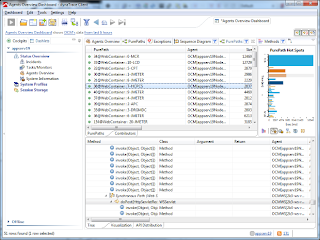
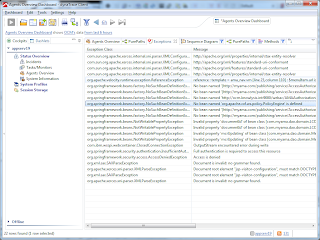


There is no license for the client so you can export captured data and give it to anyone with the client installed and they can view the details of the session and use the client to troubleshoot and make changes.


About Me

My photo
Lead Java Developer Husband and Father

Tags